

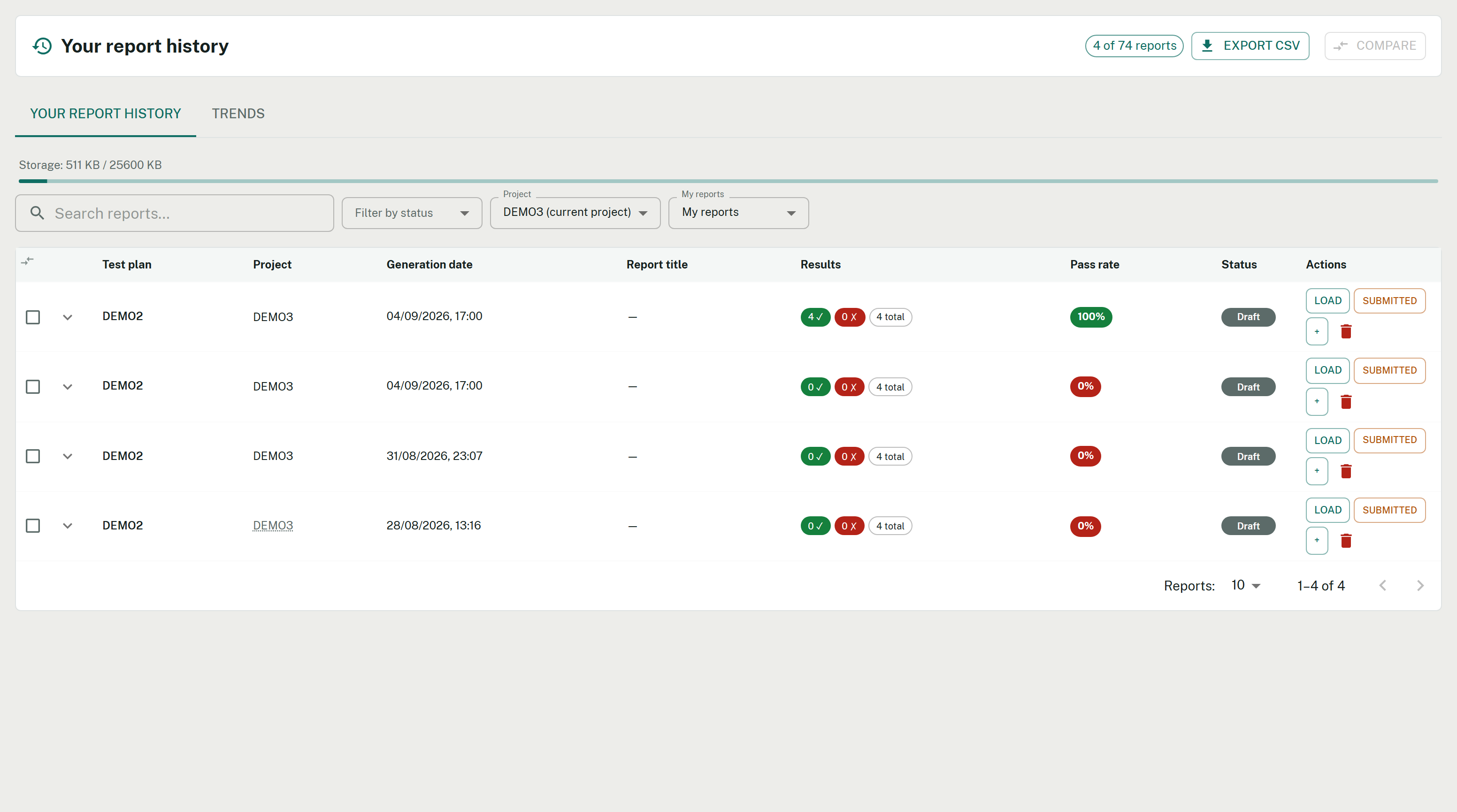
The history list: one row per saved report, with filters, status and the storage gauge.
Reload a report
Click Load on any history entry and TestPulse opens the Report tab with that report displayed. The snapshot is used directly — no re-fetch from Azure DevOps. The context is put back with it: the report’s test plan is selected again and its suites are re-checked, so you can regenerate or adjust the scope without rebuilding the selection by hand. A suite deleted from Azure DevOps since the report was built is skipped silently. A report consolidating several test plans switches the view to multi-plan mode and ticks all of its plans — multi-plan mode offers no suite selection, so none is restored there. Reports saved before this behaviour existed reload just as well: the plan and suites are read from the report itself.Which project a report came from
Personal history is stored per user across the whole organisation, so anyone working on several projects sees them all in one list. A Project column sits immediately after Test plan, and a Project filter sits between the status filter and My reports. It opens on your current project, or on All projects when that one has nothing to show. The header count switches to of reports whenever a project filter is active. Reports saved since v2.63.0 record their project. Older ones are derived at display time from the Azure DevOps links they already carry — underlined with a dotted rule, naming their source on hover, so a derived value never carries the authority of a stored one. Where neither is possible they are grouped under Unknown project, an entry of its own with its count. Nothing is dropped, and no report is rewritten.Which bugs a report counted
Each entry shows the bug source it was built with — Source: runs or Source: links. Reports saved before v2.73.0 show links: they keep the bugs they had and are never rewritten. See Bugs of a report.Compare two reports
Select two reports from history to compare them side by side:- Metrics diff — pass-rate delta, totals, passed / failed / blocked / bugs. When the two reports were built from different bug sources, a warning says the bug difference may come from that change rather than from the campaign.
- Improved — tests that moved to Passed.
- Regressed — tests that moved from Passed to Failed / Blocked.
- Added / Removed — test cases new to, or missing from, the newer report.
Status workflow
Each report carries a status: Draft → Submitted → Approved (and back via Reopen). Colour-coded badges, contextual Submit / Approve / Reopen buttons, every transition recorded (user + timestamp), a filter by status, and an optional APPROVED badge in the PDF footer.Approval is an audited workflow, not a separation of roles enforced by TestPulse: any member can change a shared report’s status. Agree as a team who is authorised to approve. Reopen resets the status to Draft and logs a history entry.
Share to the project
Toggle Share with project to make a report visible to all project members (a snapshot copied into the project scope). A blue Shared badge appears next to the plan name, with a Shared by line under it carrying the sharer’s initials and name — your own reports read Shared by you. You can filter My / Project / All, and any member can move a shared report through its workflow (written to the project copy, audited who / when). Only the original author can unshare. A quota indicator warns at 80%.Sharing publishes the snapshot that the dashboard widget reads — see the Quality overview widget.
CSV, notes & storage
Export all history as CSV, keep a 500-character note per report, and watch the storage indicator (green → red above 80% of quota). Delete old reports to free space.Related
Notifications & scheduled reports
Push KPIs, get reminded.
Quality overview widget
Where a shared report surfaces.