

Before you start
- Complete Your first report using the TP-DOC — Boutique démo plan from the demo dataset.
- Generate the report for the static child suite TP-DOC — Parcours de commande. Check that it contains one passed case, one failed case and one not-executed case, using one configuration.
- You must be able to open the project’s results and work items. This diagnostic exercise does not require changing the scoring profile or test outcomes.
The scoring profile is shared across the project. Read the profile shown in the report; do not change thresholds to reproduce a screenshot or obtain a preferred verdict. A report loaded from history retains the configuration captured at generation time.
1. Record the verdict and its context
In Report, find the Release quality block. Note:- the A–E grade and score out of 100;
- the GO or NO-GO verdict;
- the … scale · GO threshold … line;
- the report’s date and scope.
2. Read the rules that actually applied
Click Show details. Read the components first, then the displayed caps and flags.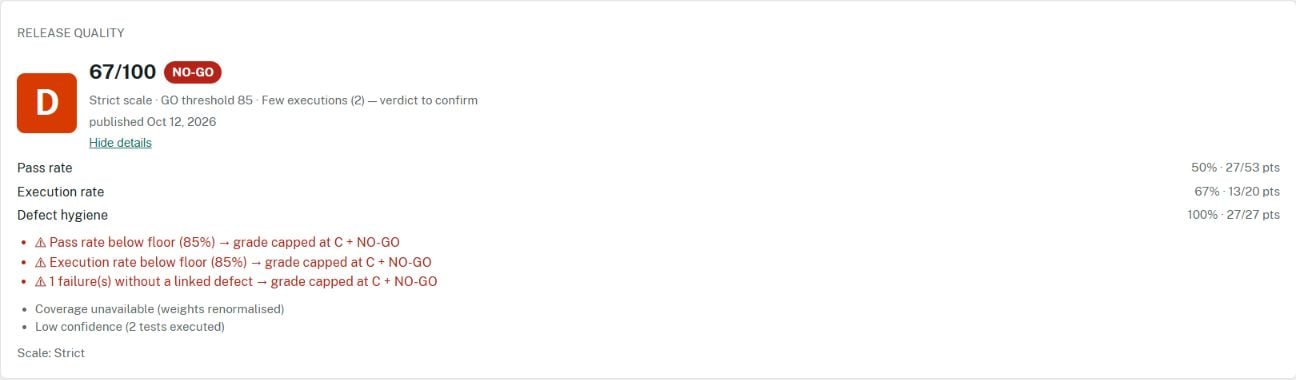
Details in TestPulse 2.73.1 for this 3-case dataset: a 50% pass rate, a 67% execution rate, grade D and 67/100 with the Strict profile. The displayed rules explain the NO-GO; the small number of executed tests also limits confidence.
Compare these rates with the floors of the profile actually displayed:
A missed floor can force NO-GO and cap the grade at C. The grade may still be worse than C; a cap never improves a grade. Profiles also use different weights and grade thresholds: identical rates do not imply identical scores. A custom configuration may produce different details: record your report’s actual rules rather than a score found in an example.
Check: you should be able to match each cap to its rule. A strong score in another component cannot compensate for an unmet pass-rate or execution-rate floor.
3. Find the evidence behind the number
1
Inspect the failed case
Under Results, find the scenario’s failed case. Open its Run link and check the case, result and configuration in Azure DevOps.Note what was observed and what was expected. Return to the report.You should see: an identifiable failed result, rather than just a campaign name containing several results.
2
Check bugs against the right source
Inspect the report’s bugs and their provenance. By default, TestPulse uses bugs attached to the campaign’s execution results, within the runs it read. A bug linked only to a user story or test case is not automatically a campaign bug.If the project uses the other mode, Test case and User Story links, apply that contract to your investigation. Bugs in the report explains both modes and reading limits.You should be able to say: “This bug belongs to this report because…”, showing the relevant association and source.
3
Look for a failure without a defect and outstanding work
Inspect Failures without defect. In the minimal dataset, the failed case appears there if it has no bug recognized by the active source. By default, this condition also forces NO-GO.Open a bug opens a prefilled Azure DevOps form. It does not create a bug on its own. If you save one in a later exercise, verify its association with the expected source: a similar title is not an association with a result.Then find the not-executed case. Identify the work to be done without artificially reclassifying it to improve the figures.
4. Read watch points without treating them as the whole verdict
Watch points highlights open blocking bugs, requirements without tests and unexecuted in-scope user stories. It does not summarize every rule. The block may contain none of these three signals while the report remains NO-GO because of its pass rate. In that case, return to Show details. For a blocking bug, inspect both its state and severity. With default values, an open Critical or High bug blocks release. The existence of a bug alone does not make it blocking. Check: do not invent causes to fill a comment. If only the pass-rate floor applies to your scope, cite that floor and the underlying result.5. Write a useful conclusion
Prepare four sentences:- Scope: which plan, suites and date?
- Finding: which active rules prevent GO?
- Evidence: which results, bugs or requirements can you open?
- Next action: who investigates the failure, who executes the outstanding case, and when will you regenerate?
The TP-DOC report covers three cases and one configuration. Two cases were executed, including one failure: under this example’s Strict profile, both pass rate and execution rate are below the 85% floors. The failed result can be opened from the Run column; the third case remains outstanding. We will investigate the failure and complete this scope, then generate a new report before reconsidering the release.A code fix, a closed bug or a new execution does not rewrite an old snapshot. After changing the source data, generate a new report to repeat the analysis.
Distinguish calculation from human decision
Some teams enable Allow GO/NO-GO decision override in project settings. The Release decision section then allows them to follow the calculation or apply a different decision. You do not need this option to complete the workshop. If a report already carries a manual decision, find Computed, Decided (manual), its author, date and justification. The grade remains the calculated grade. A manual GO crossing a hard floor retains a warning. The option is off by default, and the Strict profile leaves it disabled. Its absence is therefore not an error. This diagnostic exercise does not ask you to enable it.If your screen differs
Try it yourself
Explain the NO-GO to a colleague without starting with the grade: show the failure and outstanding case first, then the rules they trigger. Ask what evidence they would need before reconsidering the release. You have succeeded when your conclusion makes sense without the badge’s colour, every cause can be checked and you can distinguish a new generation from a human decision on the existing report.Scoring profiles and invariants
Consult the calculation and reference profiles.
Run an exploratory session
Record an observation, evidence and an actionable bug.