

Before you start
- Open the Azure DevOps project where TestPulse is installed. You need access to its hub and permission to read test plans and results.
- Prepare, or ask someone to prepare, the demo dataset. Find the TP-DOC — Boutique démo plan and its three cases in Azure Test Plans before opening TestPulse.
- Use the English TestPulse interface to match the labels on this page. The French version covers the same exercise.
- Have the project name and the identities you are allowed to use as report contacts ready.
Generating this report reads test data and saves a snapshot in your personal TestPulse history. It does not create a test run or change test outcomes. Clicking PDF, later, downloads a file to your computer.
1. Choose exactly what the report should cover
1
Open the right project and screen
In Azure DevOps, open Test Plans → TestPulse, then the Report tab.You should see: a plan selector on the left, the report form and the Generate report button. You do not need to choose a file format yet.
2
Select the demo plan
Under Test Plan, search for TP-DOC — Boutique démo and select it. Wait for the suite tree to load.In the minimal dataset, select the static child suite TP-DOC — Parcours de commande: it contains the three cases. If you adapted the dataset with additional suites, keep only this scope and check the full paths of suites with the same name. Do not place cases only in the root: see the preparation note in the demo dataset.You should see: the TP-DOC — Parcours de commande suite checked, with a count of 3. A plan is the campaign’s container; a suite groups cases. You are not selecting an export format yet.If you just added the child suite in Azure DevOps, Refresh reloads the plan list but does not always reload the selected plan’s suites in 2.73.1. Actually select a different plan, then return to the demo plan. Clearing the selector and selecting the same plan is not enough to force that reload.
2. Give the report some context
Complete the visible, required fields. Your project may customize labels, visibility and validation rules: use the form in your environment as the authority. Use the following exercise values. Skip fields that are hidden, or optional and unnecessary for your report.
Under Contacts & validation, complete IT Contact, Business Contact, Tester in charge and Approver when required. Type at least two characters, then select a suggested identity. These names describe the report’s contacts; entering them does not constitute an approval.
If Change number, Incident, Request or a custom field is required, use a demo reference that matches its stated rule. Do not copy a production identifier just to dismiss an error.
You should see: a completed form without blocking errors. An orange length hint warns that text may overflow on the cover page; it does not truncate the value.
3. Generate, then check
Click Generate report and wait for progress to finish. The report appears inside TestPulse; you have not requested a PDF yet.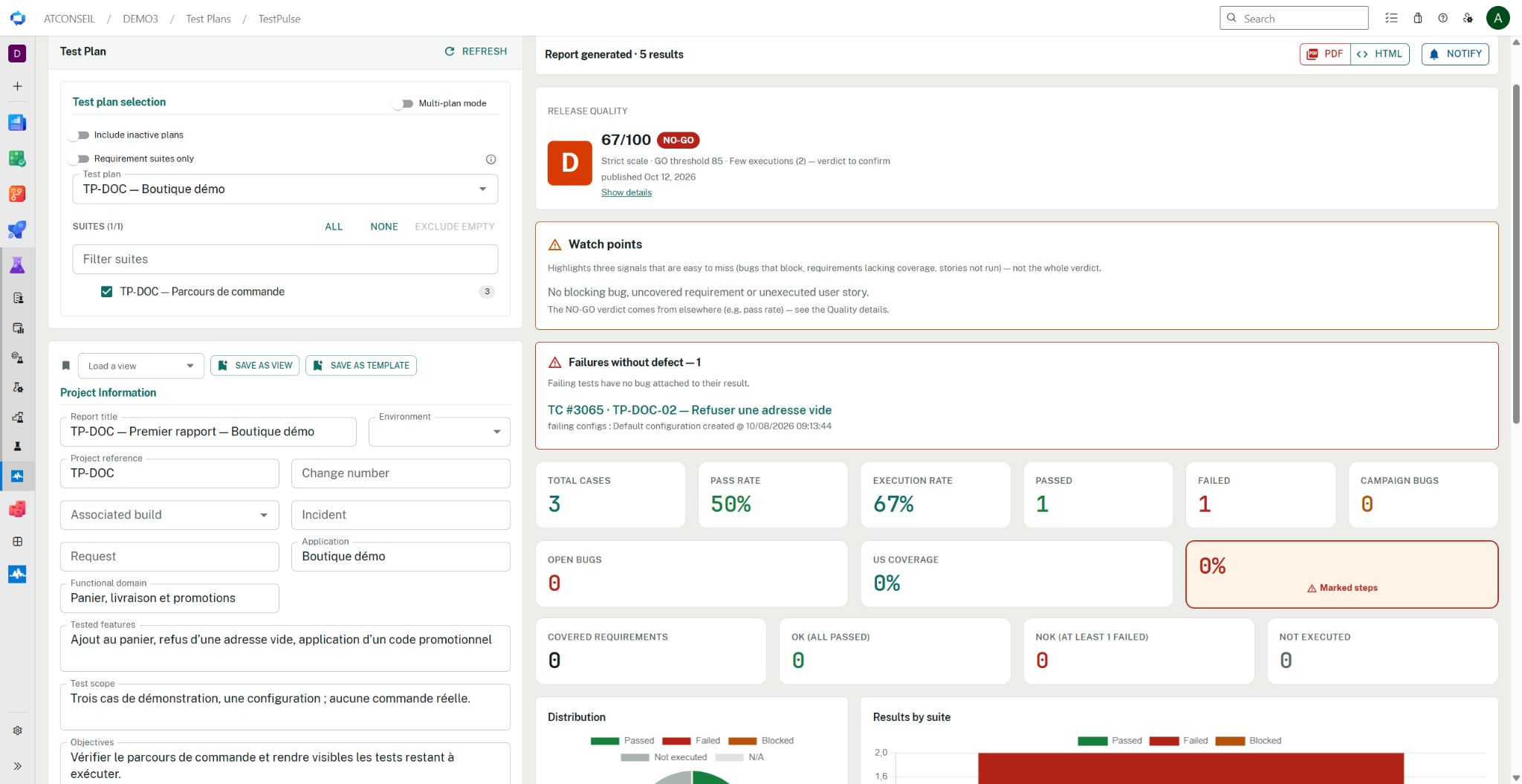
Demo report in TestPulse 2.73.1: 3 cases, a 50% pass rate and a 67% execution rate. The Strict profile gives D, 67/100 and NO-GO for this dataset. The header's 5 results include history from several executions, not 5 distinct cases. Case names stay in French because both workshops share the same fictional dataset.
- Scope. The plan and suites are the ones intended for the exercise.
- Results. Find TP-DOC-01 — Ajouter un produit au panier passed, TP-DOC-02 — Refuser une adresse vide failed and TP-DOC-03 — Appliquer un code promotionnel not executed. These are training results, not results from a real shop. Remove any result filter before comparing totals.
- Incomplete data. Read any warnings about suites, test cases, points or run history. A visible report does not guarantee that every read completed.
- Provenance. Under Results, open the failed case’s Run link. Check that Azure DevOps opens the exact result you intended, then return to the report.
In 2.73.1, the third, unexecuted case may display None as its outcome and Invalid Date as its date. A tooltip suggesting that a run exists is not evidence of execution. Check the third point in Azure Test Plans: it should be Active, without an associated run, then check that this report row has no Run. These labels do not replace verification of the source.
4. Download and open the PDF
In the toolbar above the generated report, click PDF. Wait for the download, then open the file in your PDF reader. Check the file: find the title, date, correct plan and scenario results in the enabled sections. If a section is missing, check the export configuration before concluding that data was lost. The PDF reflects the generated report. A new Azure DevOps execution after generation does not update an already downloaded file: generate and export again to obtain a new version.5. Find the snapshot
Open History, search for TP-DOC — First report — Boutique démo and check the generation date. Click Load to read the saved report. You should see: the same report with its saved data. Loading a snapshot does not automatically read the latest executions. Generate a new report when you need the current state. History saving can fail independently of report generation. If the entry is missing, keep your PDF, check your access and try generating again; do not describe the report as archived until you can find it.If your screen differs
Try it yourself
Without changing Azure DevOps results, give the report a new title and use Objectives to explain what you would do before a release. Generate it again, export it and find the new history entry. You have succeeded when you can show where each result came from, explain what remains to be executed and distinguish the displayed report, downloaded file and saved snapshot.Understand the NO-GO
Trace the verdict’s causes using the same dataset.
Form reference
All fields, suite options and validation rules.